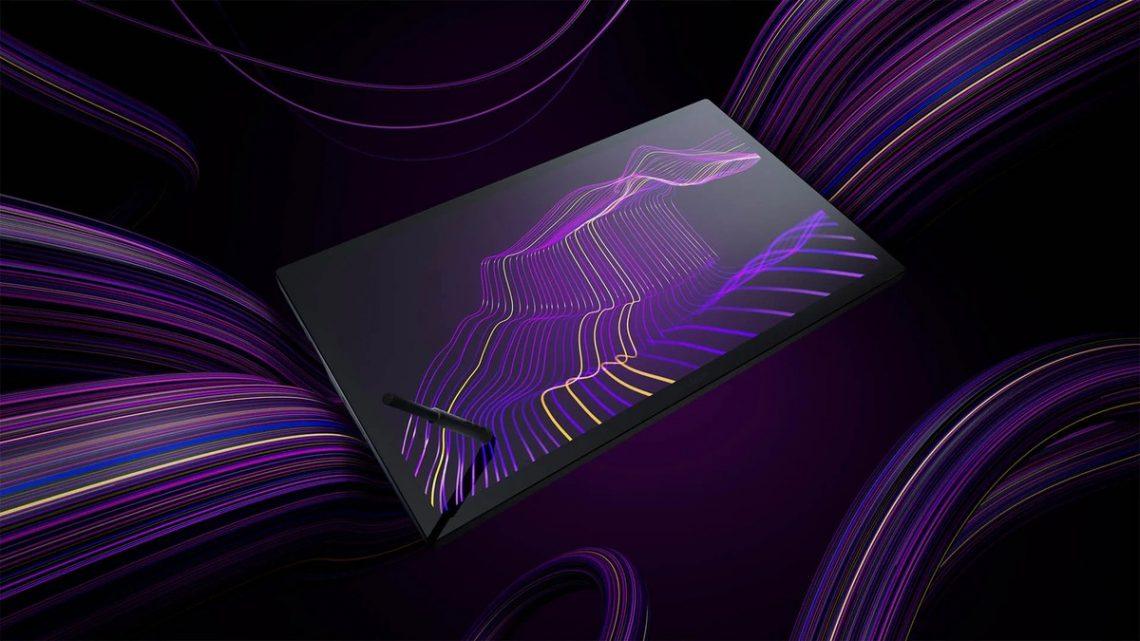
Unlocking Creativity: My Deep Dive into the Wacom Intuos Pro Medium
Hey everyone! If you’ve been following my creative journey, you know I’ve been a digital artist for what feels like eons. From my early days messing around with clunky mouse art to embracing the tablet revolution, I’ve seen and used quite a few tools. But there’s one that has truly stuck with me, a workhorse that consistently delivers, and that’s the **Wacom Intuos Pro Medium**. Today, I want to pull back the curtain and share my full experience with this fantastic piece of gear.
For years, Wacom has been synonymous with professional digital art tools, and for good reason. Their reputation for precision and reliability is pretty much unmatched. When it was time for me to upgrade from an older, smaller Intuos, I knew I wanted something that offered more real estate without completely taking over my desk. The Wacom Intuos Pro Medium seemed like the perfect sweet spot, and let me tell you, it didn’t disappoint.
First Impressions: Unboxing and Setup
There’s something genuinely exciting about unboxing new tech, especially when it’s a tool you know will elevate your work. The Wacom Intuos Pro Medium comes in a sleek package, and right away, you get a sense of the quality. Pulling it out, the tablet itself feels substantial, not flimsy or cheap. It has a reassuring weight to it, but it’s still thin enough to feel modern and elegant.
Setting it up was a breeze. I’m running Windows, and the drivers were straightforward to install from the Wacom website. No weird glitches or compatibility issues, which is always a relief. Within minutes, I had it connected via USB (my preferred method initially, more on that later) and was ready to dive in. The Desktop Center software that comes with it is incredibly intuitive for customizing settings, which is something I truly appreciate as a power user. I remember thinking, „Okay, this feels like a serious piece of kit.“
Design, Build Quality, and Portability
Let’s talk aesthetics and build for a moment. The Wacom Intuos Pro Medium has a minimalist, professional look. It’s mostly black with a subtle texture around the active area, and the ExpressKeys are neatly lined up on one side. The whole thing feels incredibly robust. I’ve had mine for a while now, tossed it in my bag for coffee shop work sessions, and it’s held up beautifully. There are no creaks, no flimsy parts; it’s built like a tank, but a very sleek one.
The size – medium – is just right for me. It offers an active drawing area of 8.7 x 5.8 inches, which translates to a good amount of space for broad strokes and detailed work without requiring huge arm movements. My hand naturally glides across it, and it feels ergonomic. If you’ve been working on a smaller tablet, the extra space makes a huge difference in comfort and control. You don’t feel cramped, and it allows for more natural wrist and arm movement, which is essential during long creative sessions. I’ve heard some artists prefer the large, but for my desk setup and occasional portability, the medium is perfect. It strikes that excellent balance.
One of my colleagues, Sarah, who also uses a Wacom Intuos Pro Medium, told me, „I travel a lot for client meetings, and this tablet slips into my laptop bag without a fuss. It’s durable enough that I don’t constantly worry about it, which is a big plus when you’re on the go.“ That really resonates with my own experience; it’s a reliable companion.
The Heart of the Experience: The Wacom Pro Pen 2
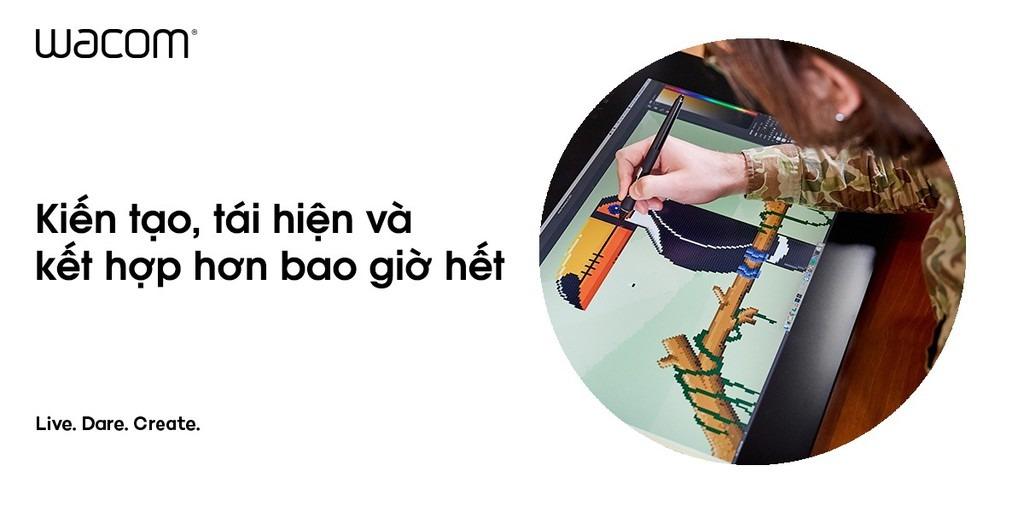
Now, let’s get to the star of the show: the Wacom Pro Pen 2. This pen is, in my opinion, what truly elevates the Intuos Pro line. It’s battery-free, which means no charging, no running out of juice mid-stroke. That alone is a massive win for workflow. The moment I picked it up, it felt balanced and comfortable in my hand, with a slight heft that gives it a premium feel. The grip is ergonomic, making it easy to hold for hours without fatigue.
But the real magic is in its performance. With 8,192 levels of pressure sensitivity, it’s incredibly precise. This isn’t just a number; it translates directly into how naturally your strokes appear on screen. A light touch creates a faint line, while pressing down harder produces a bold, rich stroke, just like working with traditional media. I primarily use Photoshop and Clip Studio Paint, and the way the Pro Pen 2 interacts with brush dynamics is phenomenal. Whether I’m sketching delicate lines, laying down broad washes of color, or meticulously painting textures, the pen responds with incredible fidelity. It truly feels like an extension of my hand.
The tilt recognition is another feature I can’t live without. It allows for natural shading and varied brush effects, mimicking traditional tools like charcoal or pastels. If you’re into calligraphy or expressive line art, you’ll absolutely love how it picks up on the angle of your pen. The two customizable buttons on the side of the pen are a lifesaver. I’ve got one set for right-click and the other for switching between brush and eraser – a simple setup that saves me countless trips to the keyboard. The eraser on the back, while I don’t use it as much as the pen button, is a nice touch for those who prefer that physical feel.
Here’s another user, Mark, sharing his thoughts on the pen: „I’ve tried a few different tablets over the years, but nothing compares to the Wacom Pro Pen 2. The sensitivity is out of this world. I do a lot of detailed retouching, and the precision allows me to work with incredible accuracy without feeling like I’m fighting the tool.“
If you’re looking to truly invest in your digital art toolkit, checking out the official Wacom site is a great place to start. You can learn more about the specifics of the Wacom Intuos Pro Medium and the Pro Pen 2 right here: Visit Official wacom intuos pro medium Website Now
The Drawing Surface and Experience
One of the standout features of the Wacom Intuos Pro Medium is its textured surface. Unlike the slick, glass-like feel of some screen tablets, this one has a matte finish that provides a subtle resistance, much like drawing on paper. This tactile feedback is incredibly important for control and comfort. It gives you that satisfying ‚bite‘ that makes drawing feel more natural and less like your pen is sliding on ice. Wacom even offers different texture sheets you can swap out, though I’ve found the standard one to be perfect for my needs. It strikes a balance between feeling like paper and allowing for smooth, fluid movements.
The overall drawing experience is incredibly fluid. There’s virtually no discernible lag between my pen stroke and the line appearing on my screen. This responsiveness is critical when you’re trying to capture a quick sketch or make precise adjustments. It feels immediate and direct, allowing me to stay fully immersed in the creative process without being distracted by technical limitations.
The tablet’s tracking is spot-on, reproducing every nuance of my hand movement. Whether I’m drawing tiny details, doing quick gestural sketches, or laying down broad strokes, the Wacom Intuos Pro Medium keeps up effortlessly. It’s consistent across different software, too. I’ve used it with Adobe Illustrator for vector work, Affinity Designer for UI/UX, and ZBrush for sculpting, and the experience remains stellar. The consistency and reliability are truly a testament to Wacom’s engineering.
ExpressKeys, Touch Ring, and Multi-Touch Gestures
Beyond the pen, the Wacom Intuos Pro Medium offers a suite of productivity-boosting features. The eight customizable ExpressKeys running down one side are absolute game-changers. I’ve programmed mine for frequently used commands like Undo, Redo, Zoom In/Out, and switching layers. Having these shortcuts right at my fingertips dramatically speeds up my workflow. I don’t have to constantly reach for my keyboard, which keeps my focus on the canvas.
Below the ExpressKeys is the Touch Ring, another ingenious addition. I typically use it for brush size adjustment, but it can also control canvas rotation, layer cycling, or zooming. It has four customizable functions, and you can switch between them with a button in the center. It’s incredibly intuitive and, once you get used to it, you’ll wonder how you ever lived without it. The tactile feedback of the Touch Ring, combined with the visual cues on your screen, makes it very easy to use without looking away from your monitor.
And then there’s multi-touch. Yes, the Wacom Intuos Pro Medium doubles as a giant trackpad. You can use standard gestures like pinching to zoom, two-finger scrolling, or rotating the canvas. While I mostly prefer the pen for drawing, the multi-touch comes in handy for quick navigation or when I’m just browsing my computer. It’s great to have the option to switch modes instantly. There’s a physical switch on the side of the tablet to toggle multi-touch on and off, which is useful if you find yourself accidentally triggering gestures while drawing.
A fellow artist, Jessica, mentioned her experience: „The ExpressKeys on the Intuos Pro Medium are a lifesaver. I’ve customized them for all my most common functions in Photoshop, and it’s made my workflow so much faster. I don’t think I could go back to a tablet without them!“

Connectivity: Wireless Freedom vs. Wired Reliability
The Wacom Intuos Pro Medium offers both USB and Bluetooth connectivity. When I first got it, I mainly used it wired. There’s something comforting about a direct connection – you know it’s going to be stable and fast, no questions asked. The included USB cable is a good length, giving me plenty of flexibility.
However, after a while, I decided to give the Bluetooth a proper try, and I was pleasantly surprised. The setup was quick, and the connection has been remarkably stable. Working wirelessly offers an incredible sense of freedom. I can lean back, adjust my position, or even move the tablet around on my desk without being tethered. The battery life is also impressive; I can get many hours of continuous use before needing to plug it in, and it charges relatively quickly. Now, I primarily use it wirelessly, only plugging it in when the battery gets low or if I need to transfer files quickly.
It’s truly a matter of personal preference, but having both options available is fantastic. It means the tablet can adapt to various desk setups and workflows.
Software and Drivers: The Unsung Heroes
A tablet is only as good as its drivers, and Wacom consistently delivers here. The Wacom Desktop Center is a robust application where you can customize every aspect of your Wacom Intuos Pro Medium. You can set application-specific ExpressKey shortcuts, adjust pen pressure curves, manage your radial menus, and even fine-tune the touch gestures. This level of customization is what makes the tablet so incredibly powerful and personal. It truly adapts to *your* way of working.
I’ve rarely experienced driver issues, which is a big deal for creative professionals. Nothing kills a creative flow faster than a driver crash or a pen suddenly losing pressure sensitivity. Wacom’s drivers are generally stable and regularly updated, ensuring compatibility with the latest operating systems and creative software. This reliability allows me to focus purely on my art, not on troubleshooting.
Who is the Wacom Intuos Pro Medium for?
This isn’t a beginner tablet, nor is it priced like one. The Wacom Intuos Pro Medium is an investment, and it’s truly aimed at serious hobbyists, aspiring professionals, and seasoned digital artists and designers. If you’re looking to elevate your digital drawing, painting, photo retouching, or graphic design work, and you value precision, build quality, and a highly customizable workflow, then this tablet is absolutely for you.
If you’re just starting out, a smaller, more basic Intuos might be a better entry point. But if you’re ready to take your skills to the next level and demand professional-grade tools, then the Wacom Intuos Pro Medium is an excellent choice. It bridges the gap between basic tablets and high-end display tablets, offering a robust, responsive, and incredibly natural drawing experience without the screen’s added cost.
Another user, David, a graphic designer, shared, „For my design work, precision is everything. The Intuos Pro Medium gives me that. It’s a professional tool that helps me deliver client work faster and with more control. It’s a worthwhile investment.“
Want to see more about this incredible device? Check out the official Wacom store: Visit Official wacom intuos pro medium Website Now
My Takeaways: The Good and the Even Better
After countless hours using my Wacom Intuos Pro Medium, here’s my rundown:
**What I love:**
* **Unparalleled Pen Performance:** The Pro Pen 2 is simply the best non-display pen experience out there. The pressure sensitivity, tilt, and natural feel are unmatched.
* **Superb Build Quality:** This tablet is built to last, designed for daily professional use.
* **Excellent Drawing Surface:** The textured surface feels fantastic and provides just the right amount of friction.
* **Customization Galore:** ExpressKeys, Touch Ring, application-specific settings – you can truly make it your own.
* **Wireless Freedom:** Bluetooth connectivity works wonderfully, giving you flexibility.
* **Perfect Size:** The medium size offers ample drawing space without being cumbersome.
**What could be even better (minor points):**
* **Price:** It’s an investment, which might be a barrier for some. However, you absolutely get what you pay for in terms of quality and performance.
* **Surface Wear:** Over time, the texture sheet does show some wear from pen nibs, especially if you press hard. Wacom does provide replacement nibs and even offers replacement surface sheets, so it’s not a huge issue, but something to be aware of.
* **Learning Curve for ExpressKeys:** While fantastic, it takes a little time to set up and memorize all your custom shortcuts. But once you do, it becomes second nature.
Longevity and Value
I’ve had my Wacom Intuos Pro Medium for a significant amount of time now, and it still performs as beautifully as the day I got it. The quality of Wacom products truly shines in their longevity. This isn’t a gadget you’ll need to replace in a couple of years. It’s a professional tool designed to endure countless creative hours. When you consider the hundreds, if not thousands, of hours of creative work you’ll get out of it, the initial cost truly feels justified. It’s an investment in your craft, your efficiency, and your creative output.
Think of it this way: instead of buying a cheaper tablet that you might outgrow or that might fail on you, the Wacom Intuos Pro Medium is a tool that will grow with you. It supports a wide array of professional software and techniques, meaning as your skills evolve, the tablet will still be capable of meeting your demands. It’s not just a drawing pad; it’s a reliable partner in your creative endeavors.
Final Thoughts: My Enthusiastic Recommendation
If you’re serious about digital art and design, and you’re looking for a pen tablet that offers precision, durability, and a highly customizable workflow, then I wholeheartedly recommend the **Wacom Intuos Pro Medium**. It’s a workhorse, a creative companion, and a tool that genuinely enhances the digital art experience. From the sublime feel of the Pro Pen 2 to the tactile drawing surface and the intelligent ExpressKeys, every aspect is designed to empower your creativity.
It’s helped me push my own boundaries, experiment with new styles, and work more efficiently than ever before. If you’re on the fence, take the leap. Your creative self will thank you.
Ready to elevate your digital art game? You can explore all the features and even grab your own Wacom Intuos Pro Medium directly from their official store. It’s a move you won’t regret.
Visit Official wacom intuos pro medium Website Now
Thanks for reading, and happy creating!


Das könnte dich auch interessieren

My Real Experience with davines: What You Should Know Before Buying

My Adventure with Chasing Paper: Transforming My Space (The Easy Way!)