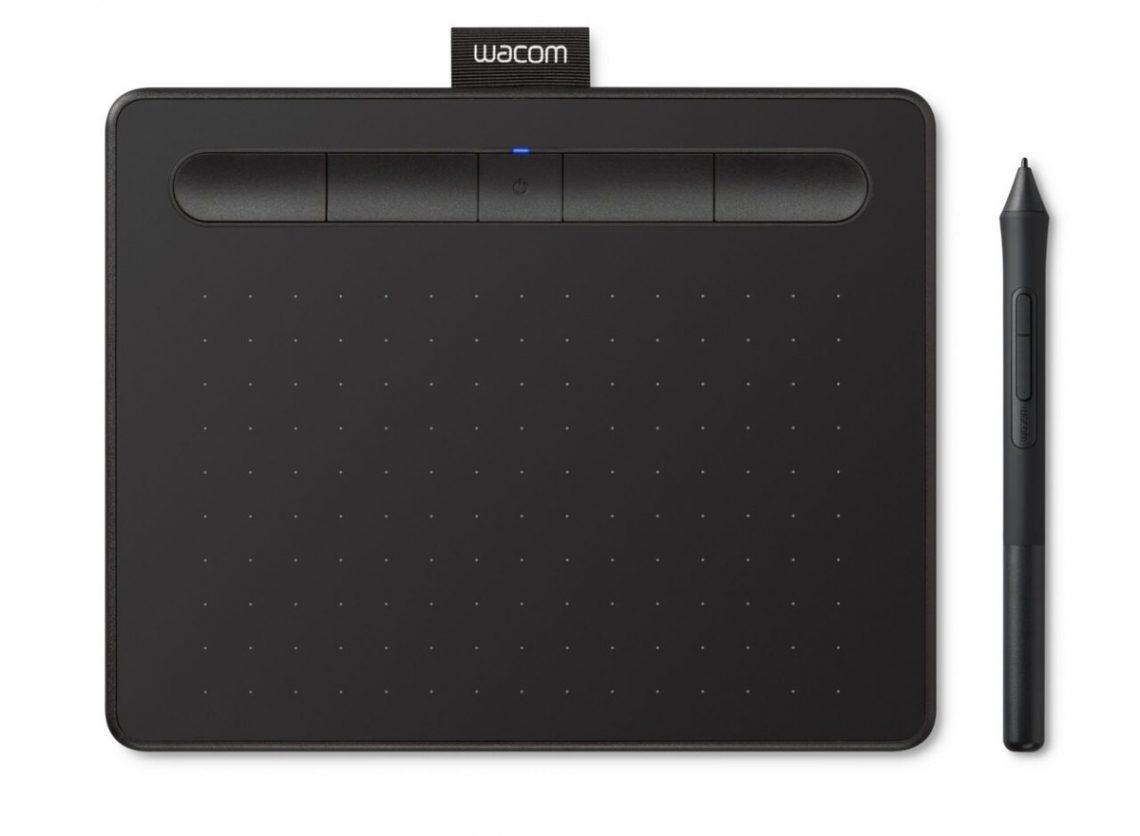
Unboxing My Wacom Intuos Pro Medium: A Deep Dive into Creative Power
Alright, creative folks, let’s talk about something that’s probably on a lot of your wishlists, or maybe even sitting on your desk right now. I’ve been a digital artist and designer for years, navigating the landscape of various tools, and recently, I decided it was time to upgrade my main pen tablet. After much deliberation, research, and a fair bit of YouTube binge-watching, I finally got my hands on the Wacom Intuos Pro Medium, and let me tell you, it’s been an absolute game-changer. This isn’t just a review; it’s a sharing of my journey, my genuine thoughts, and how this particular piece of tech has truly elevated my daily creative workflow.
For the longest time, I was working with an older Wacom model, a trusty companion that had seen me through countless illustrations and design projects. But as my skills evolved and my demands on my tools grew, I started noticing its limitations. I needed more precision, more seamless integration, and frankly, a more comfortable and intuitive experience. The buzz around the Wacom Intuos Pro Medium was undeniable, and after reading countless testimonials from fellow artists, I took the plunge.
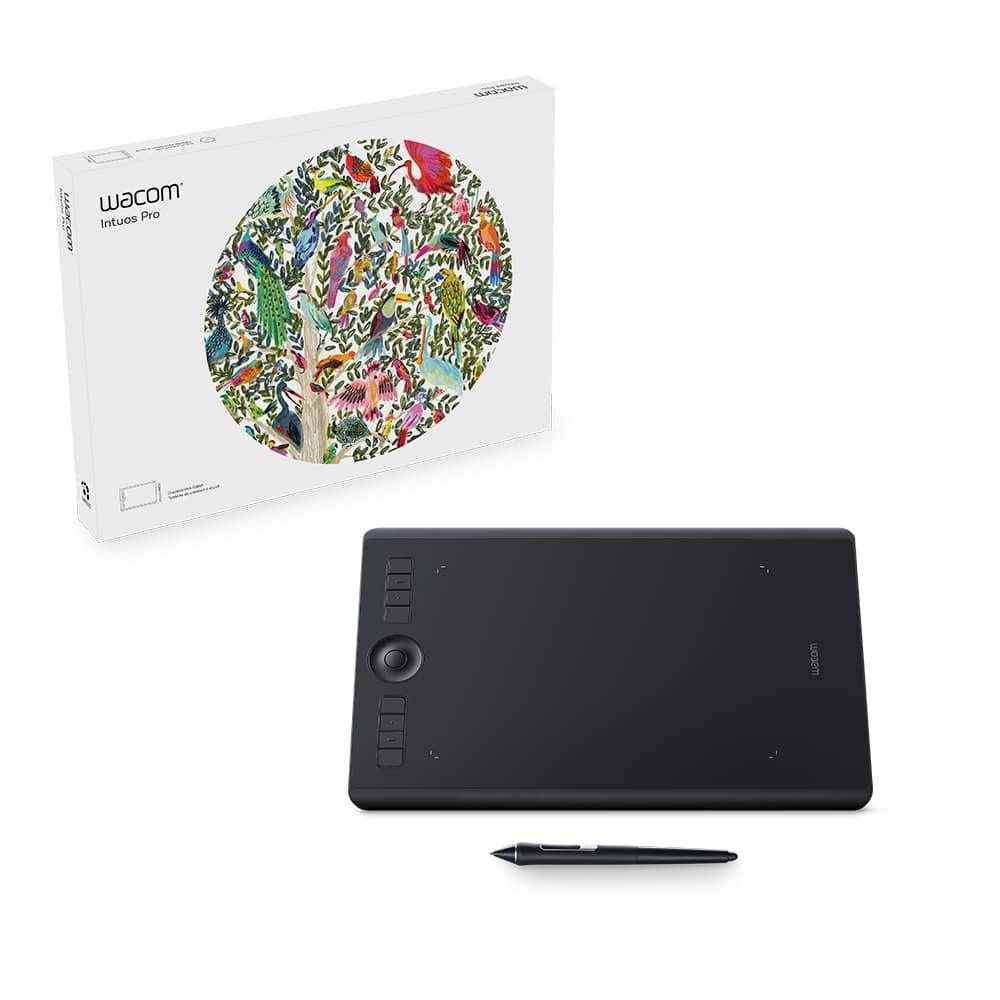
The moment the box arrived, I felt that familiar thrill. Unboxing it was an experience in itself – sleek packaging, everything neatly organized. The tablet itself has a wonderfully understated, professional look. It’s slim, feels incredibly sturdy, and has a premium finish that just screams quality. The „medium“ size, for me, hits that sweet spot. It’s large enough to give my hand and arm a good range of motion without feeling cramped, but not so massive that it dominates my entire desk space. It fits perfectly alongside my keyboard and monitor, making for a very ergonomic setup.
One of the first things that struck me was the drawing surface. Wacom has really nailed the texture here. It’s not slick and plasticky like some other tablets; instead, it has a subtle friction that genuinely mimics the feel of pen on paper. This makes a massive difference in control and how natural the drawing process feels. I found myself immediately feeling more confident with my strokes, less like I was skating across a slippery surface and more like I was truly making contact. This tactile feedback is something I didn’t realize I was missing so much until I experienced it with the Intuos Pro.
The Pro Pen 2: An Extension of Your Hand
Let’s talk about the star of the show, shall we? The Pro Pen 2. If you’ve never used a Wacom pen before, prepare to be amazed. If you have, prepare to be even more amazed, because this iteration takes things to a whole new level. The 8192 levels of pressure sensitivity are not just a number on a spec sheet; they translate directly into an incredibly nuanced and responsive drawing experience. Whether I’m delicately sketching a fine line or digging in for a thick, bold stroke, the pen reacts precisely to every subtle shift in pressure.
The tilt recognition is another feature I’ve come to rely on heavily. It allows for natural brush effects, mimicking traditional media like charcoal or broad pastels. When I’m shading or doing calligraphy, tilting the pen gives me those beautiful, varying line widths that are crucial for a natural look. And the best part? It’s completely battery-free. No charging, ever. This might seem like a small detail, but in the middle of a creative flow, the last thing you want is your pen dying on you. The Pro Pen 2 is lightweight, comfortable to hold for extended periods, and feels perfectly balanced. It just disappears into your hand, allowing you to focus entirely on your art.
I recently used it for a complex character illustration, involving a lot of intricate line work and subtle shading. I was working in Clip Studio Paint, and the synergy between the software and the Wacom Intuos Pro Medium was phenomenal. The pen picked up every slight variation in my hand movement, making the process feel incredibly fluid and intuitive. I found myself achieving details and expressions that would have been far more challenging on my old tablet. It really does feel like an extension of my hand, almost like I’m drawing directly on the screen.
Here’s what one user shared online about their pen experience:
„I was skeptical about the hype, but the Pro Pen 2 is legitimately incredible. The precision is unmatched, and I love that I don’t have to worry about charging it. It’s just ready to go whenever inspiration strikes.“ – DigitalDreamer78
Customization and Workflow Powerhouse
Beyond the drawing experience itself, the Wacom Intuos Pro Medium is packed with features designed to streamline your workflow. The eight customizable ExpressKeys are a lifesaver. I’ve programmed mine for my most frequently used commands in Photoshop – undo, redo, brush size adjustment, zoom in/out, and layer switching. Having these shortcuts right at my fingertips means I spend less time hunting through menus or reaching for my keyboard, allowing me to stay in the zone.
The Touch Ring is another brilliant addition. I primarily use it for brush size, canvas rotation, and zooming, but you can assign up to four different functions and toggle between them easily. It’s incredibly intuitive and, once you get used to it, you’ll wonder how you ever lived without it. The efficiency gains might seem small individually, but they add up to a significant amount of time saved over the course of a project, reducing fatigue and keeping my creative momentum going.
„The ExpressKeys and Touch Ring have totally changed how I work. I used to spend so much time keyboard shortcutting, but now everything is literally under my thumb. My productivity has shot through the roof!“ – CreativeCatalyst
And then there’s the multi-touch gesture support. This allows you to pan, zoom, and navigate your canvas using gestures, just like you would on a smartphone or a trackpad. While I primarily use the pen, I find the multi-touch useful for quick navigation and rotating my canvas. It’s responsive and can be a nice alternative when you want to give your pen hand a break. You can also disable it if you prefer to avoid accidental touches, which is a thoughtful design choice.
Connectivity and Compatibility
The Wacom Intuos Pro Medium offers both USB and Bluetooth connectivity. I tend to stick with the USB connection for critical projects because I prefer a wired connection’s absolute reliability, but I’ve tested the Bluetooth extensively, and it works wonderfully. It’s great for a less cluttered desk or if you want to work from a slightly more relaxed position away from your main computer. The setup was straightforward, and the drivers installed without a hitch on my Windows machine. Wacom’s drivers are generally very robust and compatible with virtually all major creative software, from Adobe Creative Suite (Photoshop, Illustrator, InDesign) to Corel Painter, Affinity Photo, Clip Studio Paint, Krita, and even 3D sculpting applications like ZBrush. The integration is seamless, and you rarely run into compatibility issues, which is a huge relief for professional users.
Who Is the Wacom Intuos Pro Medium For?
This tablet isn’t just for seasoned professionals. While it’s certainly a top-tier tool for illustrators, graphic designers, photographers (for retouching), animators, and anyone involved in digital content creation, its intuitive nature also makes it accessible for serious hobbyists or students looking to invest in a high-quality tool that will grow with them.
The medium size is particularly versatile. For someone with a standard desk setup, it provides ample working space without being unwieldy. If you’re constantly moving your drawing arm or working with very large canvases, you might consider the large size, but for most people, the medium offers an ideal balance of portability, workspace, and price. I’ve found it perfect for everything from detailed character designs to expansive landscape paintings. It even handles intricate photo retouching tasks with incredible precision, making masking and subtle adjustments a breeze.
One photographer I know told me:
„As a photographer, I didn’t think I needed a Wacom Intuos Pro Medium until I tried it. The precision for dodging and burning, and especially for complex selections and masks, has sped up my post-processing workflow immensely. It’s an absolute game-changer for detailed retouching.“ – PixelPerfectPhoto
Living with the Intuos Pro Medium: My Real-World Stories
I recently took on a commission for a highly stylized digital portrait. The client had very specific requests regarding texture and a painterly feel. Using the Intuos Pro Medium, I was able to layer brushstrokes with such control that I could almost feel the digital paint building up on the canvas. The pressure sensitivity allowed me to seamlessly transition from delicate glazing to heavy impasto effects, and the tilt function helped me achieve those broad, expressive strokes that gave the portrait its unique character. What would have been a tedious, frustrating process on a lesser tablet became an enjoyable, almost meditative experience.
Another instance was designing a complex logo. The vector work needed to be incredibly precise, with smooth curves and perfectly aligned points. The accuracy of the Pro Pen 2 made tracing and refining shapes feel natural, almost like drawing with a technical pen on paper. I could zoom in to the pixel level and still feel completely in control, laying down anchor points with surgical precision. This level of accuracy isn’t just about aesthetics; it translates directly into saved time and fewer revisions, which every professional appreciates.
Considering the Investment
Now, let’s address the elephant in the room: the price. Wacom tablets, especially the Pro series, are an investment. They aren’t the cheapest option on the market, and there are certainly more budget-friendly alternatives out there. However, from my perspective, and having experienced its capabilities firsthand, the Wacom Intuos Pro Medium is absolutely worth every penny for anyone serious about digital art or design.
The build quality means it’s durable and built to last. The advanced features genuinely improve your efficiency and the quality of your output. The unparalleled pen experience reduces hand fatigue and makes long creative sessions more enjoyable. It’s a tool that empowers you to focus on your creativity, rather than fighting with your equipment. Think of it as investing in your craft and your career. For me, the boost in productivity and the sheer joy of creating with such a responsive tool has easily justified the cost.
As one reviewer put it:
„I debated on the price for weeks, but after using the Intuos Pro Medium for a couple of months, I’m convinced it’s the best investment I’ve made in my art career. It just feels like a natural extension of my artistic intent.“ – ArtfulExplorer
Final Thoughts and Recommendation
My journey with the Wacom Intuos Pro Medium has been nothing short of transformative. It’s more than just a tablet; it’s a powerful companion that empowers creativity, streamlines workflow, and delivers an exceptional user experience. If you’re looking to elevate your digital art, design, or photo editing to the next level, and you’re ready to invest in a tool that will truly deliver, then I wholeheartedly recommend taking a closer look at this incredible device. It’s robust, incredibly precise, and an absolute joy to use.
Whether you’re sketching out initial concepts, painting intricate illustrations, retouching photos with surgical accuracy, or laying down precise vector lines, the Intuos Pro Medium offers the tools and responsiveness you need to bring your vision to life. It’s an investment that pays dividends in productivity, comfort, and creative freedom.
Ready to explore its potential for yourself?
Visit Official wacom intuos pro medium Website Now


Das könnte dich auch interessieren
Diving Deep into Solid and Striped: My Personal Journey with Timeless Swimwear

Building My Credit: A Deep Dive into My Kikoff Experience