My Deep Dive into the Wacom Intuos Pro Medium: A Creative’s Essential Tool
As someone who spends an unhealthy amount of time lost in digital canvases, pushing pixels around and trying to bring ideas to life, my tools are more than just gadgets – they’re extensions of my creativity. For years, I flirted with various tablets, trying to find that perfect balance of precision, comfort, and reliability. And then, I met the Wacom Intuos Pro Medium.
Now, before we get too deep, let me tell you, this isn’t just another review. This is about my journey, my struggles, and how this particular piece of tech has become an indispensable part of my workflow. If you’re a digital artist, photographer, graphic designer, or anyone who values tactile control in a digital world, then pull up a chair. We’re going to talk about why the Wacom Intuos Pro Medium might just be the best investment you make in your creative arsenal.
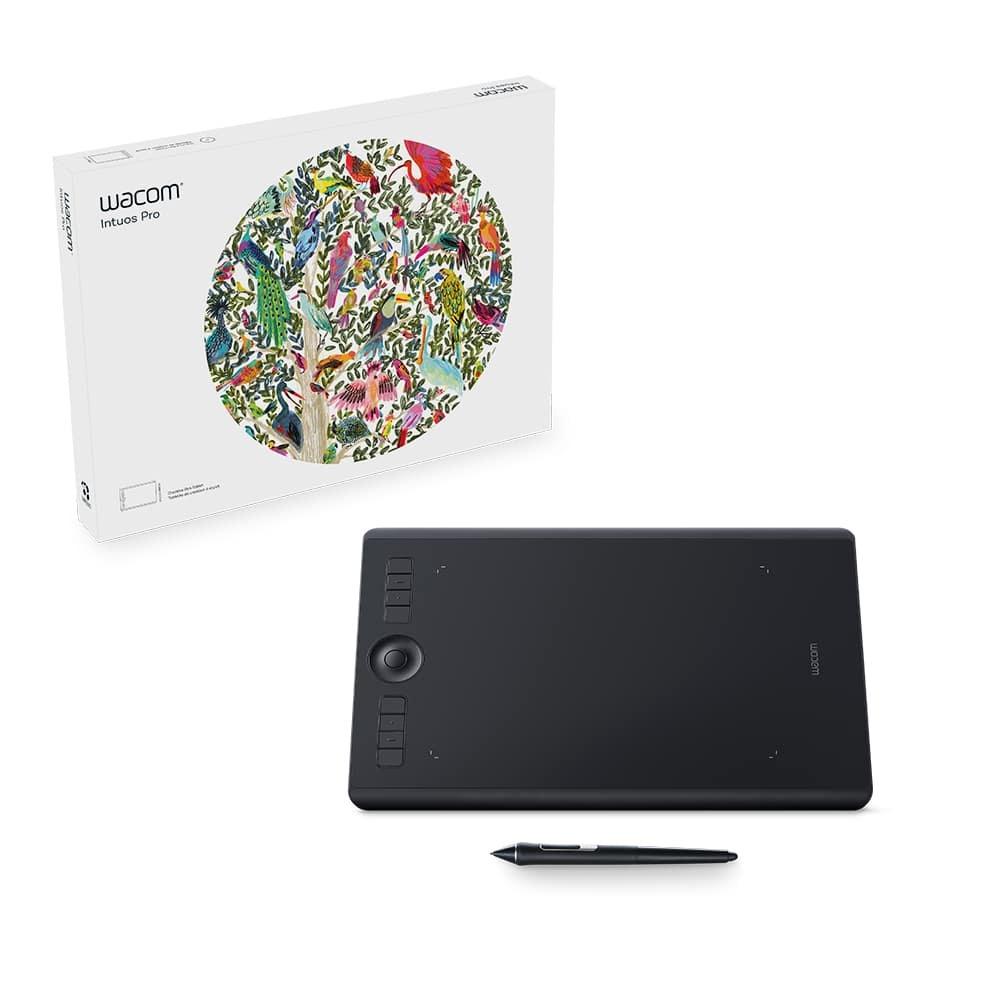
From the moment I first laid eyes on the packaging, there was a sense of understated professionalism. Wacom has always had a knack for making their products feel premium, and the Intuos Pro Medium is no exception. Unboxing it was a ritual of anticipation. The sleek, minimalist design of the tablet itself, the satisfying weight of the Pro Pen 2 in my hand, and the neatly organized accessories all hinted at the quality within. It wasn’t flashy, it was purposeful. And that’s exactly what I look for in a tool I’m going to be relying on day in and day out.
The Unboxing Experience and First Impressions
Remember that feeling when you get a new set of art supplies? That urge to just tear into them and create something? That’s what unboxing the Wacom Intuos Pro Medium felt like. The tablet itself has a wonderfully slim profile, yet it feels incredibly robust. The matte black finish is sleek and doesn’t pick up fingerprints too easily, which is a small but appreciated detail for someone like me who often has coffee nearby.
One of the first things I noticed was the textured drawing surface. It’s not just smooth plastic; it has a subtle grain that genuinely mimics the feel of paper. This was a game-changer for me. My previous tablets felt like drawing on glass – precise, yes, but lacking that satisfying friction that makes a pencil on paper so enjoyable. With the Intuos Pro Medium, there’s just enough resistance to give you control, without feeling scratchy or slowing you down.
Then there’s the Pro Pen 2. Oh, the Pro Pen 2. This thing is a marvel. It’s battery-free, which means no annoying charging cables or dead pens mid-project. It feels substantial but perfectly balanced in the hand. The two customizable side switches fall naturally under your thumb and forefinger, and the eraser on the end is just… *chef’s kiss*. More on that glorious pen in a moment.
The Heart of the Matter: The Wacom Pro Pen 2
Let’s talk specifics about the Pro Pen 2, because this is where the Wacom Intuos Pro Medium truly shines. With 8192 levels of pressure sensitivity, it’s like having a direct line to your creative intent. Every subtle shift in pressure, every delicate stroke or bold line, is translated onto the screen with astounding accuracy. I primarily use Photoshop and Clip Studio Paint for my illustrations, and the difference this pen makes is profound.
I remember one particular piece I was working on, a detailed portrait that required very fine hair strokes and subtle tonal blending. With my old tablet, achieving that level of nuance felt like a constant battle against the hardware. With the Wacom Intuos Pro Medium and its Pro Pen 2, it was like the pen simply vanished, and my hand was drawing directly on the digital canvas. The flow was seamless. The ability to vary line weight and opacity with such precision allows for incredible expressiveness.
Beyond pressure, the tilt recognition is another feature that elevates the drawing experience. When you’re sketching or shading with a broad brush, tilting the pen can mimic the way a real pencil or charcoal stick would interact with paper. It’s incredibly intuitive and makes for a more natural, organic feel. This attention to replicating traditional media experiences in a digital format is where Wacom consistently nails it.
The customizable buttons on the pen are also incredibly handy. I’ve got mine set up for switching between brush and eraser on one, and undo/redo on the other. It saves so many trips to the keyboard and keeps my focus locked on the drawing. And that eraser on the back? It’s not just a novelty; it actually works like a real eraser, sensitive to pressure, making corrections feel much more natural than hitting ‚E‘ on the keyboard.
Navigating Your Digital Canvas: The Tablet Surface and Customization
The drawing surface itself, as I mentioned, has a wonderful texture. It’s designed to provide a pleasant amount of friction, making it feel less like drawing on glass and more like paper. This „paper-like“ feel is often touted, and in the case of the Wacom Intuos Pro Medium, it’s genuinely true. Over time, you’ll notice some wear on the surface, which is normal – the nibs do their job by creating that friction. Wacom provides replacement nibs in the pen stand, which is a thoughtful touch. I’ve tried a few different nibs – the standard felt nibs give that classic paper feel, while the smoother plastic nibs offer a faster glide for certain applications. It’s all about finding what works best for your style.
When it comes to productivity, the Wacom Intuos Pro Medium is packed with features designed to streamline your workflow. The ExpressKeys are probably my most-used feature outside of the pen itself. These eight customizable buttons flank the drawing area, and I’ve configured them for my most frequent commands: zoom in/out, pan, brush size up/down, undo, redo, and layer toggles. The muscle memory builds up incredibly quickly, and soon you’ll be flying through tasks without even thinking. This significantly cuts down on interruptions and keeps my creative momentum going.
Then there’s the Touch Ring, a concentric ring that can control up to four different functions. I usually dedicate it to brush size, canvas rotation, zooming, and scrolling. A simple tap of the central button cycles through these functions, and then a swipe around the ring adjusts the value. It’s incredibly intuitive and, again, keeps my hands on the tablet and off the keyboard.
And let’s not forget the multi-touch gestures. If you’re used to using trackpads or touchscreens, you’ll feel right at home. Pinch to zoom, two-finger pan, rotate – it’s all there and customizable. Sometimes I switch between using the pen and my fingers, especially when navigating complex canvases or quickly reviewing work. It’s a fantastic feature for blending different interaction styles.
I remember reading a comment from another user online who perfectly summed up the customizability: „I’ve owned several Wacom tablets over the years, and the Intuos Pro Medium is the pinnacle of customization. I’ve tailored it so precisely to my Photoshop workflow that my hand rarely leaves the tablet. It’s like Wacom built it just for me.“ That resonated so much with my own experience.
For anyone looking to experience this level of control and precision, I highly recommend checking out the official product page. It’s an investment that truly pays off for your creative output.
Visit Official wacom intuos pro medium Website Now
Connectivity and Driver Reliability
The Wacom Intuos Pro Medium offers both USB and Bluetooth connectivity. Initially, I stuck with the USB connection, mostly out of habit and a desire for zero latency. The response time is instantaneous, and I’ve never experienced any lag or disconnects.
However, I eventually decided to try the Bluetooth. And honestly, it’s remarkably stable. For most of my work, I now use it wirelessly. It’s incredibly liberating to have fewer cables cluttering my desk. Battery life over Bluetooth is solid; I typically get a full day or more of heavy use before needing to plug it in, and it charges relatively quickly. Plus, the tablet can still be used while charging, which is a lifesaver.
Wacom’s drivers have always been robust for me. I’ve used the Intuos Pro Medium across multiple macOS and Windows versions, and the installation has always been straightforward. Customizing the settings is a breeze through the Wacom Desktop Center application. You can create application-specific settings, so your ExpressKeys for Photoshop might be different from your settings for Illustrator or even your general desktop navigation. This level of granular control is something I truly appreciate and use constantly.
One user online mentioned, „I upgraded from an older Intuos, and the driver experience is so much smoother now. No random disconnects, and switching between applications with custom settings just works perfectly.“ I’ve certainly found this to be true.
Why the Medium Size is Just Right
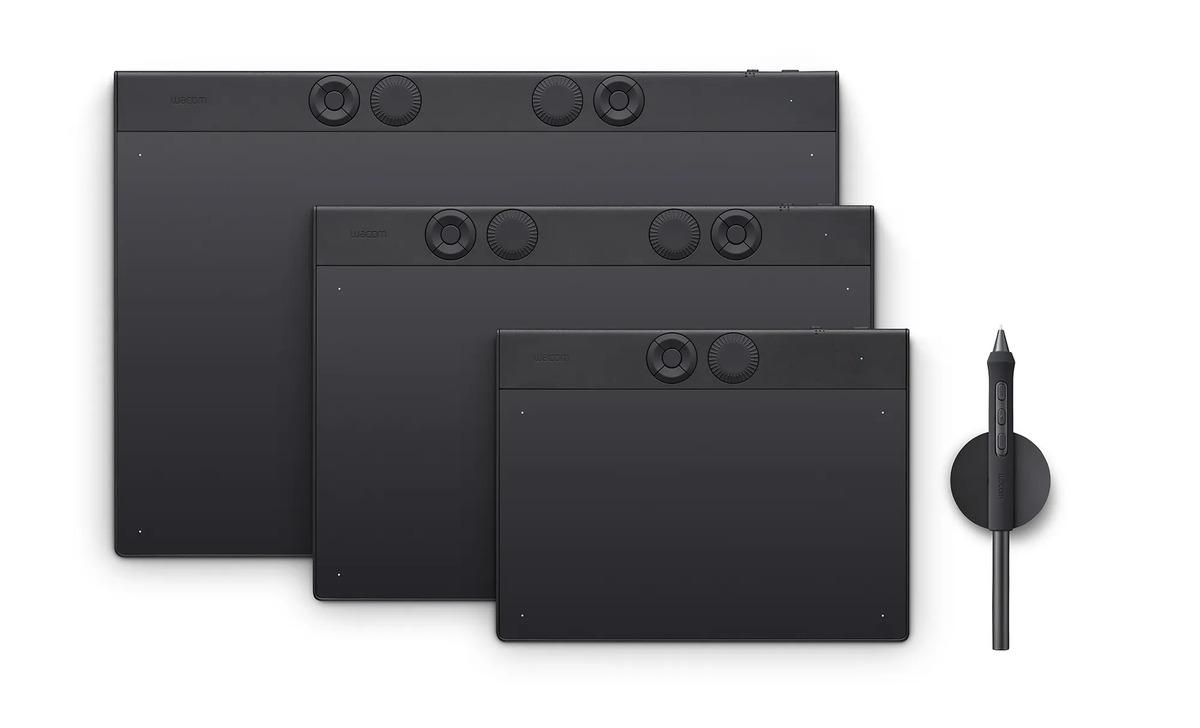
Wacom offers the Intuos Pro in small, medium, and large. For me, the medium is the sweet spot. The small felt a little cramped for my arm movements, especially for larger strokes or when working on high-resolution canvases. The large, while offering maximum drawing area, felt a bit too cumbersome on my desk and required more arm movement than I was comfortable with for extended periods.
The Wacom Intuos Pro Medium strikes a fantastic balance. Its active area is ample enough to allow for broad, flowing gestures without feeling like you’re constantly running off the edge, yet it doesn’t demand excessive desk space. It’s also perfectly portable if you need to take it with you. For someone who works on a dual-monitor setup, the medium size maps beautifully across both screens without feeling like I’m having to move my entire arm across a football field to get from one corner to the other.
Real-World Creative Applications
I’ve put my Wacom Intuos Pro Medium through its paces on a variety of projects. For digital painting and illustration, it’s a dream. The precision of the Pro Pen 2 allows me to build up layers of detail, control brushstrokes, and blend colors with an accuracy that simply isn’t possible with a mouse. I’ve created everything from detailed character designs to sprawling landscapes, and the tablet has never been a bottleneck to my imagination.
For photo editing, particularly in Lightroom and Photoshop, it’s invaluable. Retouching, dodging and burning, masking – these tasks become so much more intuitive and precise with a pen. Being able to paint in adjustments with varying pressure and opacity is a complete game-changer compared to making selections with a mouse or trackpad. I remember a particularly tricky photo restoration project where I needed to blend in a new texture onto an old, damaged photograph. The Wacom Intuos Pro Medium allowed me to meticulously paint in the new texture, matching the original grain and light with incredibly fine control. It would have taken me twice as long with a mouse, and the results wouldn’t have been nearly as seamless.
Another user commented, „As a photographer, the Wacom Intuos Pro Medium has transformed my workflow. Masking, dodging, and burning feel like natural extensions of my hand now. My edits are more precise and intuitive.“ This sentiment is shared by many in the creative community.
Graphic design tasks, from logo creation to complex layout work, also benefit greatly from the Wacom Intuos Pro Medium. While I might switch back to a mouse for precise UI navigation at times, tasks like drawing vector paths, creating organic shapes, or even just signing off on a digital document feel much more natural with the pen.
Is the Wacom Intuos Pro Medium for You?
If you’re a creative professional or a serious hobbyist who spends a significant amount of time doing digital art, photo manipulation, or graphic design, then yes, the Wacom Intuos Pro Medium is absolutely worth considering. It’s an investment, certainly, but one that directly impacts your efficiency, comfort, and the quality of your output.
It’s a step up from entry-level tablets, offering a level of precision, build quality, and customization that you won’t find in cheaper alternatives. It’s designed to be a workhorse, a reliable partner in your creative endeavors for years to come. For me, it has fundamentally changed how I interact with my digital art, making the process feel more intuitive and less like I’m battling my tools.
I’ve seen some folks online debate the merits of screen tablets versus pen tablets. While I appreciate the direct-on-screen experience, there’s something to be said for the ergonomic benefits of looking at your main monitor while drawing on a separate surface. It’s less strain on the neck and, for many, a more comfortable way to work for long hours. The Wacom Intuos Pro Medium excels in this traditional pen tablet space.
Another positive review I found: „I was hesitant about the price, but after using the Intuos Pro Medium for a few months, I can confidently say it’s paid for itself in terms of improved workflow and reduced hand fatigue. The precision is unmatched.“ This echoes my own feelings – the initial cost is quickly outweighed by the benefits.
If you’re ready to elevate your digital creative process, the Wacom Intuos Pro Medium is a fantastic choice. It’s a tool that disappears into your workflow, allowing your focus to remain entirely on your art.
Visit Official wacom intuos pro medium Website Now
Final Thoughts: A Creative Companion
The Wacom Intuos Pro Medium isn’t just a peripheral; it’s a creative companion that has significantly enhanced my ability to bring my visions to life. From the sublime feel of the Pro Pen 2 to the thoughtful customization options and the perfect balance of size and performance, it ticks all the boxes for what a serious digital artist needs.
It’s robust, reliable, and incredibly precise. It has streamlined my workflow, reduced physical strain during long creative sessions, and most importantly, it has made the act of creating digitally feel more natural and enjoyable. If you’re serious about your craft and looking for a tool that will keep pace with your ambition, you really can’t go wrong with the Wacom Intuos Pro Medium. It’s an investment in your creativity, and one that I wholeheartedly stand by.
Don’t just take my word for it; explore the possibilities yourself.
Visit Official wacom intuos pro medium Website Now and see what it can do for your art.
I’m genuinely excited for anyone who takes the leap and adds this fantastic tool to their setup. It truly makes a difference.
Visit Official wacom intuos pro medium Website Now


Das könnte dich auch interessieren

My Deep Dive into Diamond Art Club: Is It Worth the Hype for Craft Lovers?

Unveiling the Magic of Marie Oliver Dresses: My Personal Journey with Effortless Style